Text to video
Turn an Idea into a Video
Use Kling 4.0 Text to Video to test a shot before you prepare any images. Describe the subject, action, and camera move.
Preview fast drafts in Flash mode, or switch to Full 4.0 for 30-second and 4K clips.
Turn product photos or text prompts into short videos with sound for ads and social posts. Describe the action and how you want the camera to move.
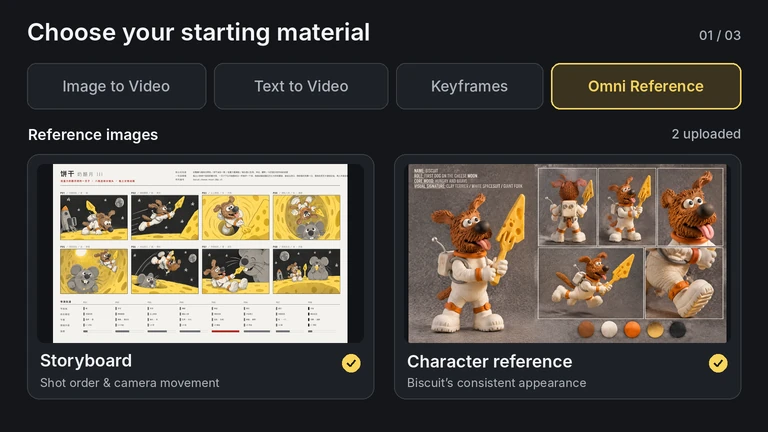
[STORYBOARD AND CHARACTER REFERENCES] Follow the attached storyboard sheet (@Image1) strictly, preserving the director-approved shot order, compositions, camera paths, screen direction, and emotional progression. Render the finished stop-motion scenes depicted in the storyboard panels; do not film the storyboard sheet itself. Do not show pencil-sketch textures, storyboard grids, titles, Chinese labels, or the director's notes column. Use the attached character design sheet (@Image2) as the sole reference for BISCUIT (C1). He is a small, round clay terrier with shaggy brown fur, one floppy ear and one upright ear, a large black clay nose, wide, hopeful eyes, and a short tail. He wears a tiny white clay spacesuit with an orange collar and cuffs, a round glass helmet with an open front that lets his nose stick out, a small backpack with a bent antenna, and oversized moon boots. He carries a clay fork larger than himself. Keep the same dog, spacesuit, and fork visually consistent in every frame. C2 is a friendly clay cheese mouse the size of a bus. [FORMAT AND CAMERA] 15 seconds, horizontal 16:9. The entire sequence unfolds as one continuous master shot with no visible cuts. A single virtual camera first bobs alongside Biscuit as he hops, then dives into the hole with him, looks upward from the bottom of the tunnel, bursts back out alongside him, and finally rises into an extreme wide shot. Achieve every change in shot size through this continuous camera movement. [VISUAL STYLE] Handcrafted clay stop-motion in the style of Aardman animation. Preserve visible fingerprints, clay texture, slightly uneven surfaces, and the stepped motion of animation at 12 frames per second. Use realistic miniature-set lighting and the shallow depth of field of macro photography. The cheese moon wobbles like gelatin. Black felt forms the sky, with foil stars and a clay Earth. The overall feeling is warm, cozy, and gently goofy. [VISUAL CONCEPT] Hunger and courage: one little dog, one enormous fork, one wobbly cheese moon, and a new friend. [ENVIRONMENT] A yellow cheese moon covered in holes, underground cheese tunnels, a tiny crooked clay rocket, and Earth in the sky. [AUDIO] No music until the final three seconds, when a cheerful tuba-and-ukulele duet begins. Sound effects: squeaky clay footsteps; springy "boing" sounds during slow low-gravity hops; a deep gelatin wobble as the moon shakes; a rubbery "pop" as the hole opens; a tumbling whoosh; the giant mouse's loud gnawing and startled squeal; frantic paw scrabbling; one deeply satisfying first bite of cheese; contented chewing; and a tail tapping the ground. [EMOTIONAL DIRECTION] L1 curiosity → L3 surprise → L4 panic → L5 peak chase → L5 pure bliss at the first bite of cheese → L1 warmth and contentment. [STORYBOARD BEATS — CONTINUOUS, NO CUTS] 0–2s (P01): Keep the camera low and close to the cheese surface. Biscuit steps out of the crooked little rocket, presses one paw into the cheese, sniffs, and opens his eyes wider and wider. He carries the fork over his shoulder. Earth is visible in the sky. 2–4.5s (P02): The camera bobs alongside him as he makes slow, exaggerated low-gravity hops across the cheese landscape, his ears flapping up and down. He plunges the fork into a large wedge of cheese. The entire surface immediately wobbles like gelatin, and a huge hole opens beneath his feet. 4.5–7s (P03): The camera dives into the hole with him. Still gripping the fork in his paws, he tumbles slowly through a cheese tunnel riddled with holes. He passes a bus-sized clay cheese mouse gnawing on the tunnel wall, startling it. 7–9.5s (P04): The camera reaches the bottom of the tunnel and looks upward. The giant mouse turns, its whiskers trembling, and chases Biscuit up the tunnel. Biscuit panics and ricochets between the walls, with curled ribbons of cheese trailing behind his fork. 9.5–12s (P05): The camera bursts out of the hole with them. Biscuit launches upward in a slow, high arc, and the giant mouse's head emerges immediately behind him. Hanging upside down in midair, Biscuit scoops a large curl of cheese onto his fork, puts it in his mouth, and instantly melts into pure bliss. 12–15s (P06): The camera rises and pulls back to an extreme wide shot. Biscuit and the giant mouse sit side by side on the rim of the hole, eating cheese together. The rocket rests behind them. Earth rises slowly, and foil stars dot the sky. Biscuit exhales contentedly, fogging the glass of his helmet, while his tail wags happily. The tuba and ukulele begin. Hold this image.
Kling 4.0 is a multimodal AI video model from Kuaishou that can generate up to 30 seconds of video with stereo audio in a single pass. On KlingReel, you can start with a text prompt or product photo, or use a reference clip to guide a shot for an ad or social post.
Start with a written idea, a single photo, up to 10 keyframes, or reference clips. Pick the Kling 4.0 workflow that matches the assets you already have.
Use Kling 4.0 Text to Video to test a shot before you prepare any images. Describe the subject, action, and camera move.
Preview fast drafts in Flash mode, or switch to Full 4.0 for 30-second and 4K clips.
Upload a photo and describe what should move with Kling 4.0 Image to Video. Add a camera move, such as a slow push-in to highlight packaging or a portrait, then preview and download.
Upload up to 10 keyframes, such as a wide opening shot and a close-up ending. Describe how the scene moves between them, then preview and download.
Available in Kling 4.0 Full only, not Flash.
Upload up to 5 reference videos and 10 images in Kling 4.0 Omni Reference. Describe what to follow, such as the camera’s path around a product or reveal timing, then preview and download.
Supports up to 15 mixed assets in Full 4.0 mode.
Every clip below was generated directly with Kling 4.0—no external editing or stock footage. Use Try This Prompt to load an example’s exact settings into the workspace and create your own.
Compare inputs with outputs across reference, editing, and keyframe examples.
Input

Output
Apply @Image1 felt textures to @Video1 without restaging.
Generate 30-second 4K clips, lock characters across shots, and edit footage in one workspace. Use Kling 4.0 Full for final renders, or switch to Flash for fast, low-cost drafts.
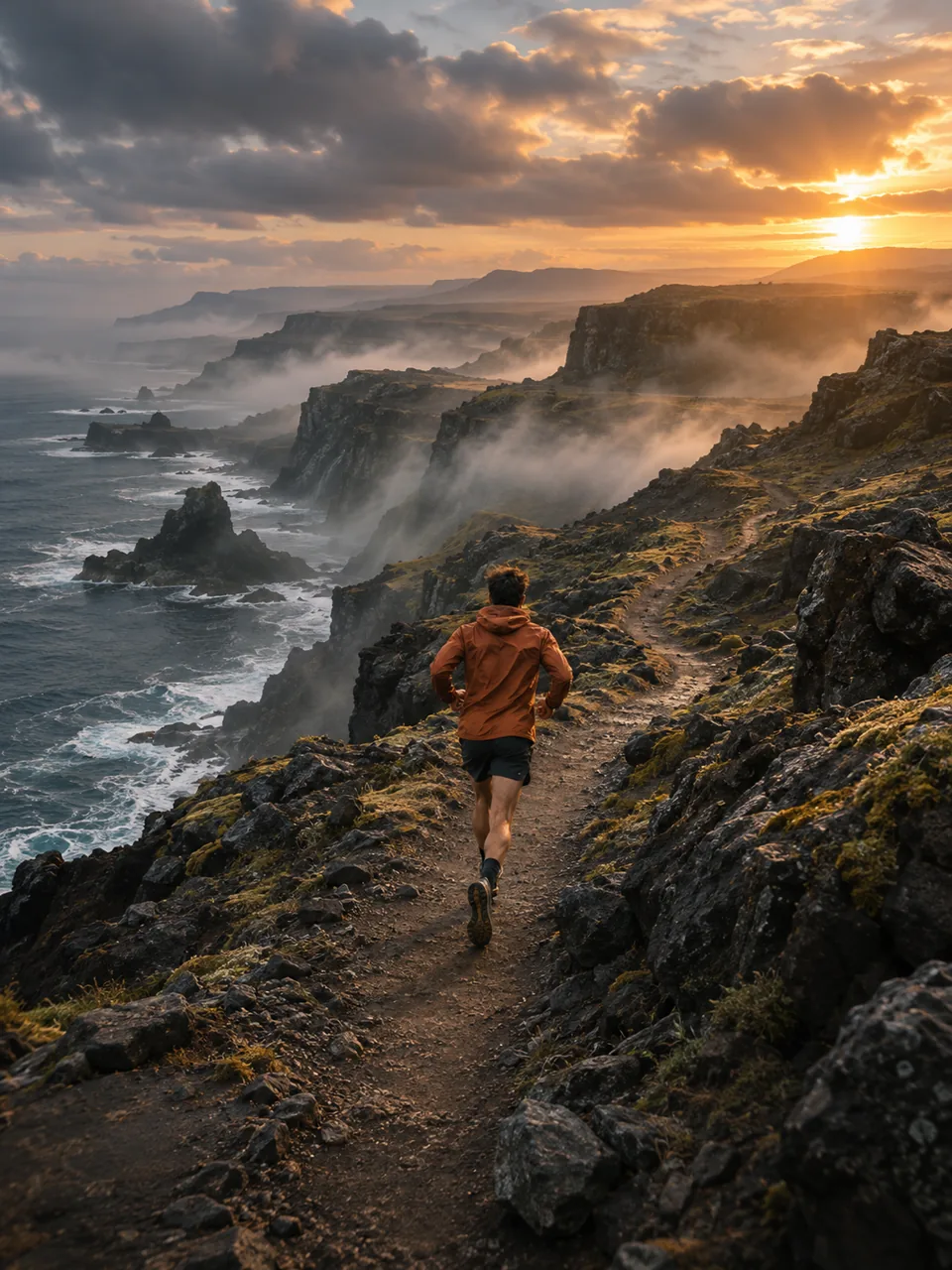 Full scene control
Generate 3 to 30 seconds of continuous Kling 4.0 footage in one pass without stitched extensions that break lighting. Hold a consistent look from start to finish.
Choose 21:9, 16:9, or 9:16 in up to 4K 10-bit HDR, then preview and download your MP4. 30-second lengths and 4K exports run on Full 4.0 only and use more credits.
Current KlingReel workspace output: 720p or 1080p. 4K export is not available here yet.
Use Kling 4.0 keyframes to guide a product shot from a wide view of the package to a close-up of the label.
Upload the opening and closing images, then describe how the camera should move between them.
Use Kling 4.0 Omni Reference to create a product ad with the camera movement you want.
A text prompt alone can make it hard to describe an exact camera angle or pace. Upload a clear product photo and a reference clip, then tell the model to follow the clip’s camera movement and use the photo for the packaging details.
Create a talking clip with lip-synced dialogue and stereo sound using Kling 4.0.
Background music can drown out a short product pitch. Write the speaker’s exact words and language in your prompt, ask for quiet room tone, and preview the clip to check that every word comes through.
Use Kling 4.0 to revise a product shot with a text prompt. A distracting object can draw attention away from the product even when the framing looks right. Upload your clip and describe one change, such as “Remove the box behind the bottle.” Preview the edit to check the product and camera movement before downloading.
Add your existing clip as a reference and review the generated result before downloading.
Use Kling 4.0 Flash to test a camera move in a short draft.
An awkward angle is easier to spot in motion than in a written prompt. Generate a short clip, review the framing, and adjust your prompt. Choose Kling 4.0 when you need a longer take or want to guide key moments with multiple keyframes.
Not every shot requires maximum compute. Switch between Kling 4.0 and Kling 4.0 Flash right inside our online workspace to balance quality, speed, and credit efficiency.
| Find your fit | Full scene controlKling 4.0 Pro / Full | Explore fasterKling 4.0 Flash | Previous generationKling 3.0 |
|---|---|---|---|
| Best for | Final renders & scene control | Fast, lower-cost drafts | Existing 3.0 workflows |
| Native clip length | 3–30 seconds | Up to 20 seconds | 3–15 seconds |
| Output in this workspace | 720p / 1080p | 720p | Model-dependent |
| Keyframe control | Up to 10 keyframes | Not supported | First & last frames |
| Reference inputs | 10 images + 5 videos | Start with text or an image | Smaller combinations |
| Reference video length | Up to 30s total | Use Full for Omni Reference | Up to 15 seconds |
| Credits per second | 5 at 720p · 8 at 1080p | 3 at 720p | See Pricing |
| View credit costs |
Pro refers to Full 4.0 on this page. Reference-video seconds are added to output seconds when calculating the cost. 4K / HDR exports are not currently available in this workspace.
Choose 4.0 for longer continuous shots, up to 10 keyframes, and larger reference sets. Use Flash to check framing before a final Full render.
Start with the shot you need: compare camera movement, product detail, and usable results with your own materials. Kling 4.0 offers up to 30-second takes and 15-asset Omni Reference.
See what you can upload, which video settings are available, and how many credits your video will use before you generate.
Check supported formats, sizes, and slot caps before uploading. The same rules also show right beside each upload box.
Duration, resolution, and keyframe options depend on whether you pick Kling 4.0 Flash or Full.
| Setting | Flash | Full |
|---|---|---|
| Duration | 3–20s | 3–30s |
| Resolution | 720p | 720p / 1080p |
| Aspect ratio | 16:9 · 9:16 · 1:1 · 21:9 | |
| Keyframes | — | Up to 10 |
| Export | MP4 with sound | |
Note: In Image-to-Video mode, the output keeps your start image's aspect ratio instead of letting you pick a new one.
Optional voice profiles: MP3 / WAV, 5–30s, max 50 MB each, up to 3 within the 15-asset total. Voice references require 720p Full mode.
4K 10-bit HDR is a model capability; this workspace currently offers 720p and 1080p.
Your exact credit cost updates live right next to the Generate Video button as you adjust mode, duration, or resolution. Kling 4.0 Flash costs fewer credits per second for quick drafts, while longer 1080p clips in Full mode use more.
Reference-video duration is included in the estimate. Check your account credit history if a task fails.
A product photo, a few clear instructions, and a shot you can make your own.
Select Image to Video for a product photo, Text to Video for a new idea, Keyframes for a sequence, or Omni Reference to guide motion. Start with Flash for a short text or image draft.
Upload your materials, then describe the subject, action, camera movement, and sound. Choose Full for up to 10 keyframes. Pick your duration and resolution, then check the credit cost beside Generate Video.
Sign in and select Generate Video. Watch the task status in the workspace, play the finished clip, and download your MP4. Keep your materials and settings to test one change at a time.
Start with the detail that matters most to your shot. Test one change at a time—ideally in Kling 4.0 Flash to save credits before final renders—so you can clearly see what improved the output.
Camera & subjectSlow lateral tracking shot around a speckled ivory ceramic mug on a wooden breakfast table.Details & lightKeep the asymmetric handle and glaze consistent. Morning window light, soft shadows.Ending & soundEnd on a close-up of the rim. Gentle room ambience, no dialogue or music.
Describe one clear movement: slow push-in, lateral tracking, or a gentle orbit. State where the shot starts and ends.
Name the shape, label, material, and colors that should stay consistent. Use clear product references for details that matter.
Write the speaker’s exact words and language. Ask for “quiet room tone, dialogue only, no background music” when clarity matters.
Keep your inputs and settings fixed while you test a camera move or action. Use Flash for quick drafts, then Full for the final shot.
Answers about credits, video settings, references, and using your creations.
Yes, you can try Kling 4.0 for free on KlingReel. New users receive free sign-up credits to generate their first video at no cost. Once your starter credits run out, buy a credit pack on the Pricing page for more clips and longer renders.
Start with Kling 4.0 Flash for quick prompt tests, and switch to Full when you need longer clips or tighter scene control. Flash generates up to 20 seconds at 720p for fewer credits, but it does not support keyframes. Full mode supports up to 30 seconds, 1080p in this workspace, Omni Reference, and up to 10 keyframes.
Yes, Kling 4.0 keeps characters and products consistent using Omni Reference or Multi-Keyframes in Full mode. Upload up to 15 mixed references—max 10 images and 5 videos—to lock 7 subjects and 3 voices. Slight detail shifts can still happen in fast motion, so start with clear, well-lit front photos.
Yes. Every video you generate in our workspace—including your free trial exports—can be downloaded as a clean, watermark-free MP4 file. For higher volume runs and full commercial usage rights, simply top up with a one-time credit pack on our Pricing page—no recurring subscriptions required.
Your materials and settings stay in the workspace when a generation fails. Check the task status and your account credit history before retrying. To avoid burning credits on misaligned creative shots, always test composition in Kling 4.0 Flash first and lock key visual transitions with reference images before running a full 30-second Pro render. See the Refund Policy for billing terms.
Yes, you get full commercial rights to use KlingReel videos for ads, client work, and store listings. KlingReel keeps your uploaded assets private, does not share them with third parties, and deletes them automatically after three months. Download your finished MP4s before the three-month window ends, and check our Terms and Privacy Policy for full licensing and privacy details.
Compared to Kling 3.0, v4 doubles native clip length to 30 seconds, adds 10-bit HDR, 10-keyframe control, and 8,000-token scripts. Compared to Seedance 2.5, creators pick Kling 4.0 when they need longer continuous shots, tighter multi-keyframe camera/character control, and 15-asset Omni Reference. Check the model comparison and current workspace output settings before choosing.
Upload a product photo or describe your shot. Choose your settings, check the credit cost, and generate a video you can preview and download.